
ChronoSync 12.0 for MacOS Download [Latest 2026]

ChronoSync for Mac is a professional file backup and synchronization application designed exclusively for macOS. Trusted by power users, creatives, and IT professionals, it offers far more flexibility and control than basic backup solutions. Whether you want to protect important files, keep folders synchronized across all your devices, or create a bootable system backup, ChronoSync delivers reliability and accuracy.
ChronoSync for Mac is designed to handle both simple and complex data management tasks. It allows you to synchronize folders, back up files to multiple destinations, archive previous versions of documents, and create full system clones. Unlike automated backup tools that run silently in the background with limited customization, ChronoSync gives users complete control over what is backed up, when it is backed up, and how conflicts are handled.
ChronoSync is a Mac application that allows you to synchronize or back up files and folders. It also allows you to back up your entire system to create a bootable backup. With ChronoSync, you can synchronize or back up most devices and directories, including folders on your Mac, other Macs, PCs, and external drives.
Key Features:
Advanced File Synchronization:
ChronoSync can synchronize files in one or two directions, ensuring that multiple folders or devices are always up to date. It intelligently compares file changes and updates only what’s necessary, saving time and storage space.
Reliable Backup Solutions:
Users can create scheduled backups of important files and folders to external drives or network locations. ChronoSync supports incremental backups and can archive old or deleted files, allowing you to restore previous versions when needed.
Bootable System Backups:
One of ChronoSync’s standout features is the ability to create bootable macOS backups. These system clones allow users to boot their Mac directly from the backup drive, speeding up and streamlining recovery in the event of a system failure.
Smart Scheduling and Automation:
ChronoSync offers powerful scheduling options. Tasks can be executed at specific times, according to recurring schedules, or when certain events occur, such as the connection of an external drive. This automation ensures that backups are performed consistently without manual effort.
Remote and Cloud Sync Support:
The application allows you to synchronize data from cloud storage services and remote servers using secure connections. This makes ChronoSync ideal for users who store files both locally and online.
Custom Rules and Filters:
ChronoSync allows granular control over what is backed up. Users can include or exclude files based on their type, size, name, or date, ensuring that backups remain clean and efficient.
Detailed Logs and Notifications:
Every operation is logged in detailed logs, and users can receive notifications when tasks are completed or issues arise. This transparency helps maintain confidence in data protection.
What’s New?
- Improved scheduling with more flexible time options.
- Enhanced automation and support for remote task activation.
- Improved compatibility with cloud and file providers.
- Performance improvements for faster, more reliable syncing.
- Updated task management with clearer status tracking.
- Full compatibility with the latest macOS versions.
You may also Download:
Pixelmator Pro 3.7.1 for MacOS
ChronoSync System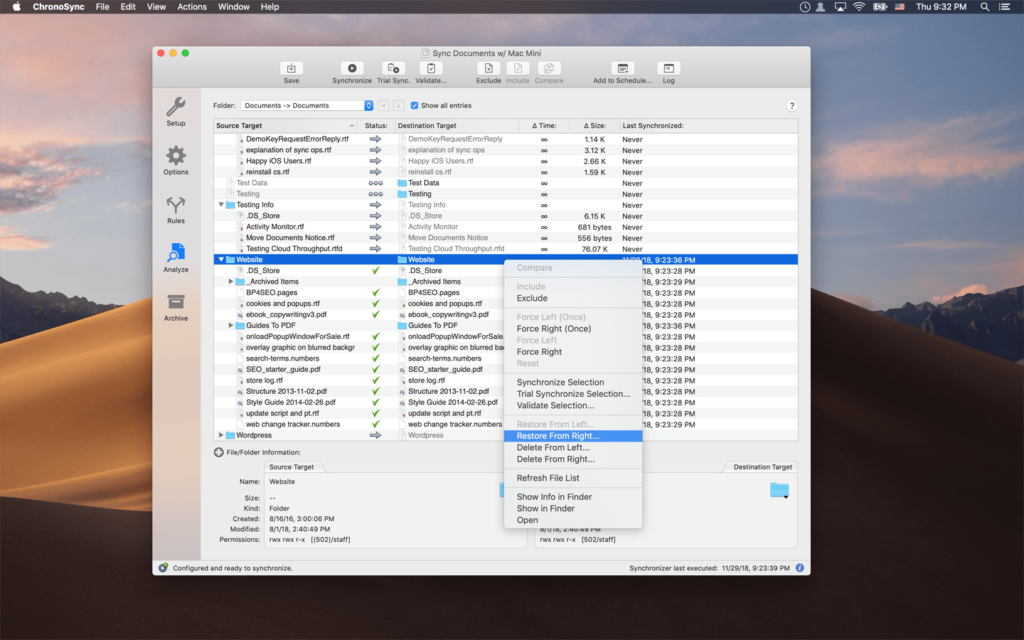 Requirements:
- Operating System: macOS 10.14 (Mojave) or later.
- Processor: Intel-based or Apple Silicon Mac.
- Memory: 4 GB RAM minimum (8 GB recommended).
- Storage: About 150 MB free disk space for installation.
- Compatibility: Works with APFS, HFS+, external drives, NAS, and network volumes.
Pros and Cons:
Pros:
- Extremely flexible and customizable.
- Supports system synchronization, backups, and cloning.
- Robust automation and scheduling options.
- Compatible with local, network, and cloud storage.
- One-time purchase model.
Cons:
- Available only on macOS.
- Advanced features may be complex for beginners.
- The interface prioritizes functionality over simplicity.
How to Download?
- Download the ChronoSync installer for macOS.
- Open the downloaded file and drag ChronoSync to your Applications folder.
- Launch the application from your Applications folder.
- Grant the necessary permissions (Full disk access, Files and folders) when prompted.
- Complete the initial setup and configure your first sync or backup task.
Homepage:https://up4mac.org/
Leave a Reply