
UTM Virtual Machines 4.7.5 for MacOS [Latest 2026]

UTM is a virtualization application designed to run on Apple devices, including macOS and iOS. It allows users to create and manage virtual machines (VMs), enabling them to run different operating systems on their Apple devices without dual-booting or complex configurations.
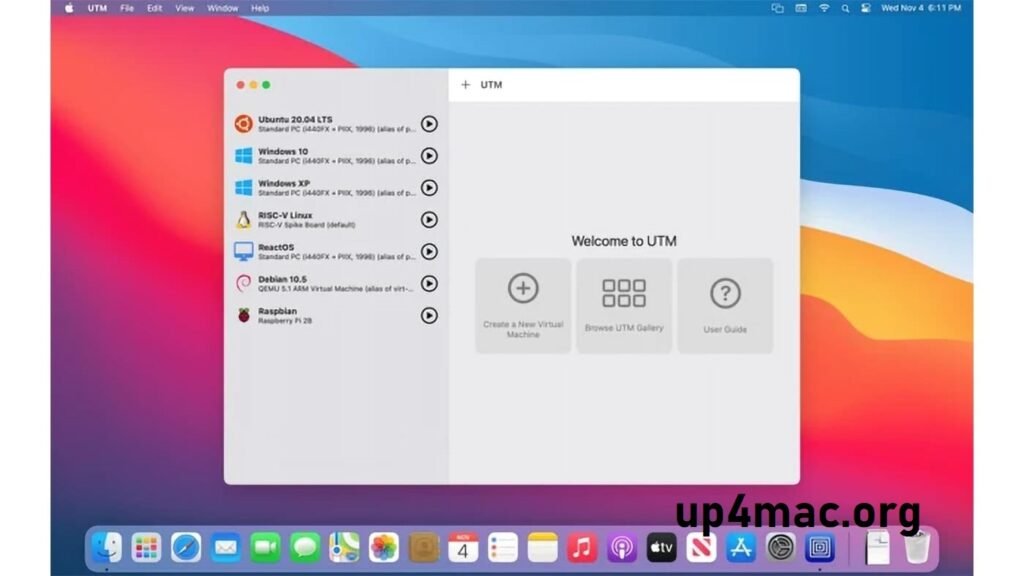
Essentially, UTM is based on QEMU, a well-known open-source virtual machine emulator and emulator. It offers an intuitive interface that makes virtualization easy for non-technical users, while still retaining advanced features for power users.
One of the most flexible and intuitive virtualization solutions currently available is UTM. In this blog, we’ll delve into what UTM virtual machines are, how they work, and why they’ve become increasingly popular, especially among macOS and iOS users.
UTM 4.7.5 is fully portable, compatible with the latest versions of macOS and Apple Silicon, and available for download on FileCR. Thanks to its simple and secure installers, users can avoid complex configurations and access all the features of this powerful open-source tool.
Key Features of UTM on Mac
UTM is specifically optimized for macOS, including Intel-based Macs and Macs with Apple Silicon (M1, M2, M3). Here’s what sets it apart on Mac:
1. Native Apple Silicon Support:
- UTM can run ARM-based operating systems natively on Macs with Apple Silicon.
- It offers near-native performance when virtualizing ARM operating systems such as Windows 11 ARM, ARM Linux distributions, or macOS ARM.
- It allows users to run x86 operating systems through emulation, although performance is lower than native ARM virtualization.
2. Full macOS Compatibility:
- Works seamlessly with macOS Big Sur, Monterey, Ventura, and later versions.
- No additional drivers or modifications required: UTM integrates perfectly with macOS’s sandboxed environment and security requirements.
3. Intuitive macOS Interface:
- Designed with Mac users in mind.
- Supports drag-and-drop ISO and disk images.
- Simple wizard for creating virtual machines with a macOS-like user interface.
- Supports macOS Dark Mode and keyboard shortcuts.
4. Performance Optimizations:
- Hardware-assisted virtualization uses Apple’s hypervisor to maximize speed.
- It can allocate multiple CPU cores and dynamically adjust RAM.
- Supports SSD and NVMe virtual disks for faster I/O performance.
5. Snapshots and Rollbacks:
- Create snapshots to save the state of a virtual machine.
- Revert to previous states in seconds—ideal for testing software updates or experimenting with operating system changes risk-free.
6. Broad Operating System Compatibility:
- Run popular operating systems such as Windows, Linux, Android, and earlier versions of macOS.
- Ideal for developers who need cross-platform testing environments without switching devices.
7. Seamless macOS File System Integration:
- Drag and drop files between macOS and the virtual machine.
- Mount macOS folders in virtual machines for easy access to documents, images, and projects.
You may also Download:
What’s New in UTM?
1. Updated Virtualization Backend:
UTM now uses an enhanced version of QEMU, improving performance, stability, and compatibility with a wide range of operating systems.
2. Modern macOS Interface:
The user interface has been updated to match the latest macOS design trends, offering a sleek and modern look with improved navigation and Dark Mode support.
3. Application Intents and Automation:
Full support for Apple Shortcuts allows users to automate virtual machine tasks, such as starting, suspending, or shutting down virtual machines directly from workflows.
4. Custom Keyboard Shortcuts:
Users can define custom key combinations to send commands to virtual machines, such as Ctrl+Alt+Delete, without resorting to complex workarounds.
5. Improved Virtual Machine Creation Wizard:
The setup wizard now includes pre-configured templates for various operating systems, streamlining the creation of new virtual machines, including legacy operating systems like Windows 95 or earlier versions of macOS.
6. Enhanced Networking:
Support for multiple host-only networks allows virtual machines to communicate on isolated virtual networks without impacting the host Mac or internet connection.
7. Expanded RAM Allocation:
RAM configuration now supports up to 64 GB via the user interface, with the option to manually configure even larger amounts for resource-intensive virtual machines.
8. Snapshots and Rollbacks:
Snapshots allow users to save virtual machine states and instantly revert to them, ideal for testing software or experimenting with configurations.
System Requirements:
- macOS: 11.3 (Big Sur) or later
- CPU: Intel or Apple Silicon (M1/M2/M3)
- RAM: 8 GB minimum, 16 GB+ recommended
- Storage: 30–50 GB per VM (80 GB+ recommended for heavy OSes)
How to Download?
- Install UTM from the website or App Store.
- Create a VM → choose OS & architecture.
- Set CPU, RAM, and storage.
- Load OS ISO and install.
Homepage:https://up4mac.org/
Leave a Reply